 Paulo Castellano
How to Create a SaaS Knowledge Base: Step-by-Step Guide
Learn how to build a SaaS knowledge base to reduce support tickets, improve self-service, and boost user satisfaction.

If you run a SaaS product, you already know this: users are impatient. They won’t wait three days for a support ticket to get answered. They won’t trawl through ten forum threads either. In fact, research shows that 75% of SaaS users would quit a product altogether if they hit a problem and couldn’t find a fix. That's not just frustrating, it’s churn waiting to happen.
This is where a knowledge base earns its place. Unlike a support team bound by shifts, a knowledge base is available round the clock.. It answers questions at 2 a.m., keeps users moving without friction, and quietly takes pressure off your support queue.
And here’s the bit people often overlook: a knowledge base doesn’t just fix issues, it prevents them. It stops users from becoming frustrated in the first place. That’s why I started Pipeback. I wanted to make building and running a knowledge base straightforward. No endless setup, no clunky systems, just something that actually works.
I’m Paulo Castellano, founder of Pipeback, and in this guide, I’ll show you how to create a SaaS knowledge base step by step. My goal is to give you a clear, practical way to keep users happy and reduce churn without drowning in support requests.
Follow These Steps To Create a SaaS Knowledge Base
Before diving into the steps, if a comprehensive overview of choosing and evaluating knowledge base software for SaaS startups is needed, check out this detailed guide: Knowledge Base Software Guide for SaaS Startups.
Below is a simple step-by-step process for creating a SaaS knowledge base.
Step 1: Define the scope and purpose
Before you start cranking out articles, stop and ask: what do our users actually need from this knowledge base? Not what you think they need, not what your product team wishes they’d read, but the real stuff that users get stuck on.
The easiest way to find out is to look at the problems already landing in your lap. Dig through past support tickets, chat logs, or even sales calls. If you see the same question popping up ten times a week, that’s your signal that there has to be an article on it. Otherwise, your support team will be stuck answering the same thing for the ten-thousandth time, and no one has patience for that.
Next, think about the different stages your users go through. Someone signing up for the first time doesn’t care about advanced integrations. They just want to get started without feeling lost. Meanwhile, your power users will be asking about limits, API endpoints, or admin controls. By mapping these groups out, you can decide what belongs in your “front door” content versus what sits deeper in your library.
Forget about writing a mission statement that sounds good on paper. What matters is clarity: your knowledge base should help users solve problems without needing you or customer support. If you keep that at the center, you’ll avoid creating a scattered library of nice-to-have articles nobody reads.
Step 2: Plan the structure or don’t fall into the FAQ trap
Most SaaS companies start out copying the same FAQ style: one huge page or a long, scrolling list. It works at first, but grows unreadable fast. Customers aren’t looking for a wall of text. They want to search, scan, and navigate down a logical path.
If you want your knowledge base to actually get used, map it out with a hierarchy.
- Main categories: What are the pillars of your product? Examples might be Getting Started, Billing, Integrations, Troubleshooting, and Advanced Features.
- Subcategories: Drill down. For Billing, maybe “Invoices” and “Refunds.” For Integrations, list each app or API you support.
- Articles: Make each one as specific as possible. “How to connect to Zapier”, not just “Integrations”.
A logical structure helps users and supports search functionality, too. Try drawing it out on paper or in a flow diagram. If you struggle to fit something, maybe you need a new section or maybe that content doesn’t belong yet.
Step 3: Use Pipeback Knowledge Base
Building your own knowledge base might sound like a good idea, but in practice it eats up months of development time and constant maintenance. Meanwhile, your customers are still waiting for answers. That’s why I built Knowledge Base so you can skip the hassle and give your users a professional help center in minutes.
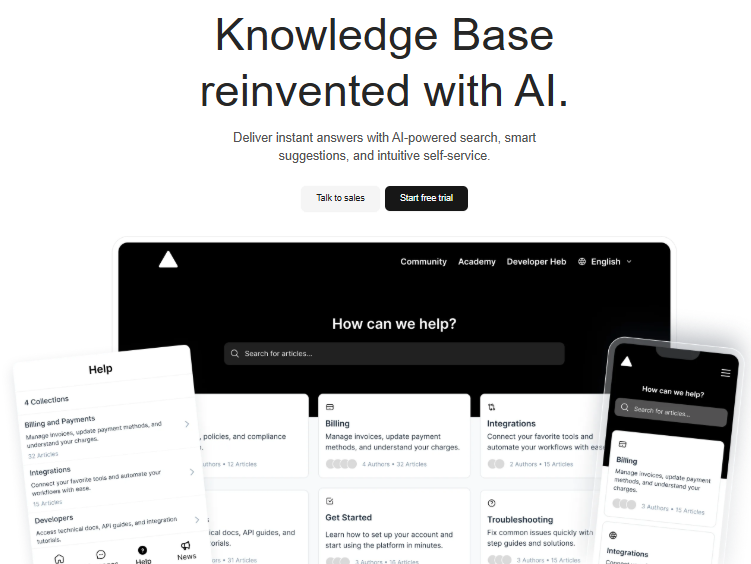
With Pipeback Knowledge Base, you can:
- Set up in minutes, not months.
- Publish content in multiple languages.
- Use your own custom domain (e.g. help.yourcompany.com).
- Customise the design to match your brand.
- Organise articles into collections like “Billing” or “Onboarding.”
- Add rich content—tables, code, videos, images—without extra tools.
- Collect user feedback on every article.
- Embed the same content inside your app with the Pipeback widget.
- Benefit from AI-powered search, helping users find the right answers faster—even if they don’t type the perfect keyword.
Everything is built to be simple, fast, and flexible, without the hidden costs or rigid structures you’ll find elsewhere.
I know you’ll have more questions about the features, how integration works, or even how to publish your first articles. Don’t worry, I’ve got you covered. Check out the video ⬇️ below and you’ll see everything in action.
By now, you can probably see there’s no reason to take the hard road of building a knowledge base from scratch. With Pipeback Knowledge Base, you can customise it to fit your brand, launch fast, and keep your users happy. Want to see for yourself? Start your free trial today.
Step 4: Write your articles
This is the step where you actually talk to your users and solve their problems. Writing good knowledge base articles is a bit like teaching a distracted child: you have to be clear, patient, and sometimes a little repetitive, but never condescending.
Start with a small list of five to ten articles covering the real beginner needs and the two or three most annoying pain points. Focus on “how do I...” and “what does this mean?” think onboarding, account recovery, and billing quirks. There’s space for broader or more specialized topics later.
- Keep articles short: Aim for one concept per article. If you start needing subheadings, maybe you have enough content for two articles.
- Use clear, plain language: Avoid jargon and in-house terms; write as if the user knows nothing about your software.
- Add visuals: Screenshots, annotated images or short video clips are worth a thousand words. Use captions for accessibility and clarity.
- No walls of text: Use bullet points, short paragraphs, and lists which is easy to understand.
- Answer actual questions: If a user asked it in a chat, email, or on social, it belongs here first.
Every article answers a real question.
It’s tempting to start with everything. Resist. Go for the basics and keep it open for feedback. As new questions come in, publish new articles, don’t hoard them for a big launch.
Step 5: Make your knowledge base easy to find and use
The best content in the world means nothing if nobody finds it. Searchability and navigation are non-negotiable.
Research shows that 91% of customers are willing to try a knowledge base if it is easily accessible and meets their needs. Companies with easy-to-find and well-organized knowledge bases not only reduce repetitive support queries but also boost customer satisfaction and retention, driving positive business outcomes.
Here is how you can make your knowledge base easy to find on your website-
- Add a powerful search bar right at the top of every page. AI-powered search is now edging into the mainstream, letting users find help even with partial keywords or bad spelling.
- Logical categories: As you add more entries, revisit your structure. If users often get lost, shuffle things around. There’s no penalty for reorganizing because users rarely complain about “too easy to use.”
- Link to the knowledge base everywhere: In your app, in onboarding emails, in live chat bots, and even on invoices if you can. Drop a help icon where users are already getting stuck.
- Mobile-friendliness matters: Few things frustrate customers more than a help article that won’t load or display right on a phone. Test yours.
Step 6: Collect feedback and keep content fresh
A knowledge base isn’t set-it-and-forget-it. SaaS products move quickly; new features, deprecations, bugs, and interface updates can leave articles outdated within weeks.
Set up simple feedback buttons on every article (“Was this helpful?” yes/no, with room for a simple comment). Check the analytics weekly or monthly at least. If you see the same complaints, revise your writing, add images, or explain tricky concepts better. It’s not a personal failure; it’s normal growth.
Step 7: Integrate Your Knowledge Base with Other Support Channels
Even the best knowledge base won’t get used if it feels hidden. Users expect answers to show up right where they’re stuck, whether that’s inside your product, in live chat, or when exploring new features. If they have to dig, they’ll default to raising a ticket instead.
That’s why integration is essential. And this is where Pipeback Knowledge Base makes things simple.
- In-app widget: Articles appear directly in your app, so users can get help without leaving the screen they’re on.
- Live chat suggestions: Pipeback’s AI-powered chatbot can recommend relevant articles in real time, cutting down on repetitive support requests.
- Product updates: Whenever you roll out something new, you can link users straight to the right article and keep frustration low.
- Feedback and analytics: Every article can gather feedback and track usage, helping you refine support across channels.
With Pipeback, integration isn’t something extra you need to set up. It’s already part of the platform. Your knowledge base connects naturally with your app, your chat, and your updates, so users always find the right help at the right time.
Step 8: Maintain, measure, and adapt
As your SaaS grows, your knowledge base has to grow with it. New features, integrations, and user types will always bring fresh questions, and if your content doesn’t keep up, it quickly loses value.
The best teams treat this as an ongoing cycle:
- Check search data: Which queries are common, and which return no results? Gaps here point directly to the next articles you should write.
- Review top articles: If the same ones are always at the top, make sure they’re polished and accurate. If others are never opened, ask why. Are they too hard to find, or just unnecessary?
- Look at feedback rates: Articles marked as “unhelpful” usually need clearer wording, better screenshots, or updated steps. So, improve them.
Don’t be afraid to prune old content. Merge duplicates, update screenshots, and move niche details into advanced sections. Fresh eyes can help like someone new to the product, who will spot confusing terms or missing steps that veterans overlook.
A knowledge base isn’t static. The more you refine it, the more useful it becomes for every new wave of users.
What to avoid when building your SaaS knowledge base
- Don’t be too vague or too granular. Articles that try to cover too much are as bad as those that are so narrow that nobody can find them.
- Don’t let it go stale. An outdated knowledge base is worse than none; in fact, it teaches users not to trust your support.
- Don’t bury feedback forms. Make it easy for users to flag when content is wrong or unclear.
- Don’t skip analytics. If you’re not measuring what people search for, you’re flying blind.
- Don’t forget the mobile experience. Many users will check help articles on their phones. Therefore, it has to work faster and better on mobile.
Above all, avoid the “set and forget” mindset. Your knowledge base is alive, and it needs to grow as your SaaS does sometimes in surprising directions.
Conclusion
A great knowledge base doesn’t sit in the background; it becomes part of your product. It keeps users moving, cuts down support noise, and proves you take customer experience seriously.
Research shows 81% of customers try to solve issues themselves before contacting support, and 91% say they’d use a knowledge base if it met their needs (Source: HubSpot). That means clear, up-to-date content is the difference between a frustrated churn risk and a confident long-term customer.
So here’s what matters: choose software that grows with you, write content that actually solves problems, and keep it fresh. Ask for feedback, track searches, and never let articles go stale. Your knowledge base is a living system. So, treat it that way.
Imagine! If just 10% of your users find answers on their own through the knowledge base, how much time would you free up to build, improve, or breathe? That’s a win. Right!
Ready to make it happen? Integrate Pipeback Knowledge Base into your SaaS website, customize it to your brand, and give your users the support they expect. Start your free trial today.
Share this article